Microsoft Copilot Studio
Live Hub connects to a bot built in Microsoft Copilot Studio, Microsoft's no-code bot platform. Copilot Studio does not use Bot Framework Composer: everything it needs is built in.
Bot management in Live Hub is built on the AudioCodes VoiceAI Connect platform. Its notes on integrating Copilot Studio are worth reading first.
Choose an authentication method
Copilot Studio reaches Live Hub over Direct Line, a standard HTTPS channel. Choose one of the following two authentication methods, and collect its credentials before you create the connection:
| Method | What you collect | Live Hub option |
|---|---|---|
| Direct Line Speech channel | A token endpoint URL | Direct line |
| Web channel security | A secret key and an environment ID | Direct line enhanced authentication |
Use web channel security when you want the extra security, or when your bot requires authentication.
Get the Direct Line Speech token endpoint
The token endpoint belongs to the bot's Direct Line Speech channel in Copilot Studio.
To get the token endpoint:
-
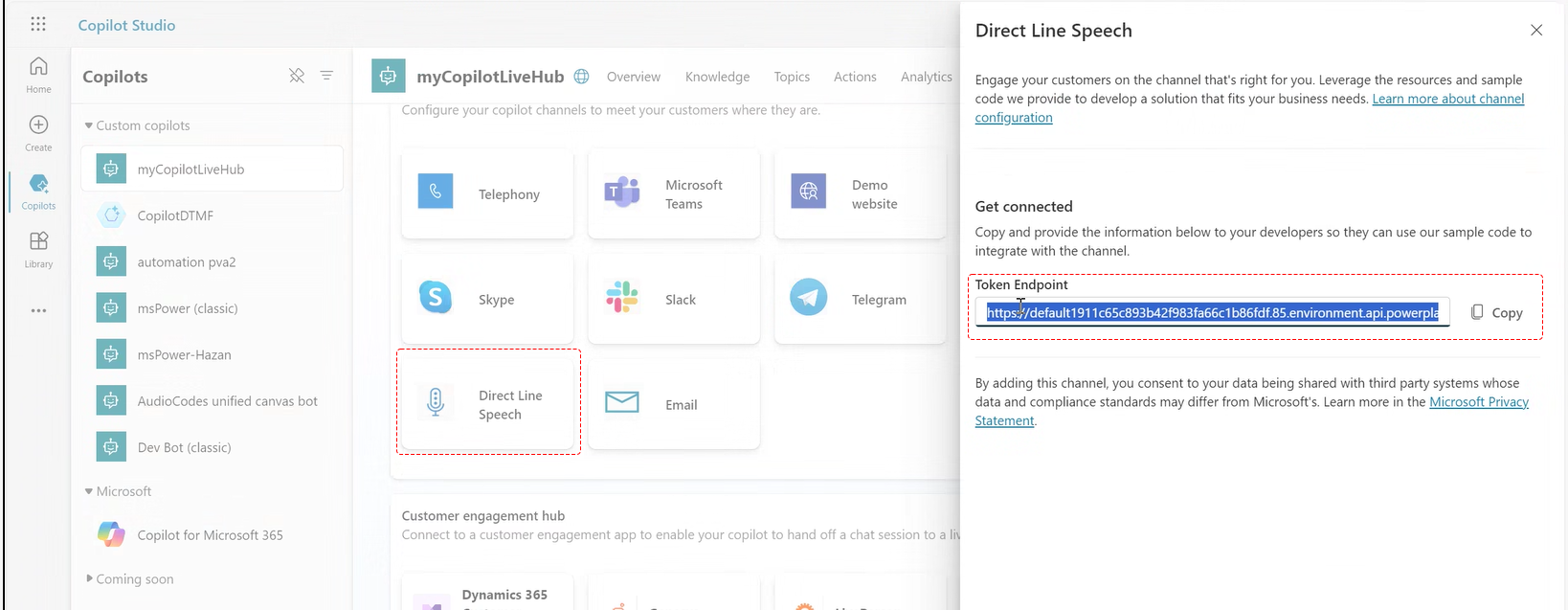
In Copilot Studio, open your bot from the Copilots page.
-
On the toolbar, select the Channels tab, and then select Direct Line Speech.
-
Next to 'Token Endpoint', click Copy.
Get the web channel secret key and environment ID
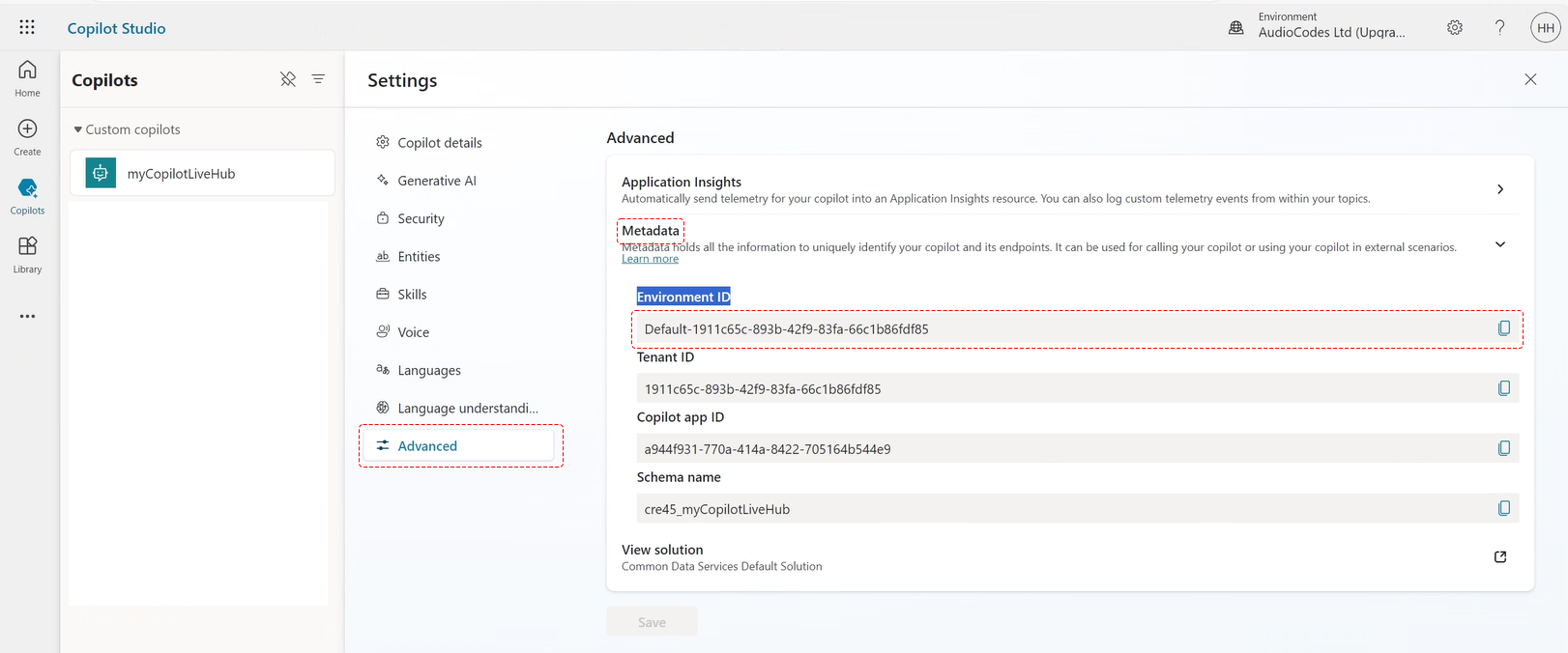
Both values come from the bot's settings in Copilot Studio: the secret key from Web channel security, and the environment ID from Metadata under Advanced.
To get the secret key and environment ID:
-
In Copilot Studio, open your bot from the Copilots page, and then click Settings on the toolbar.
-
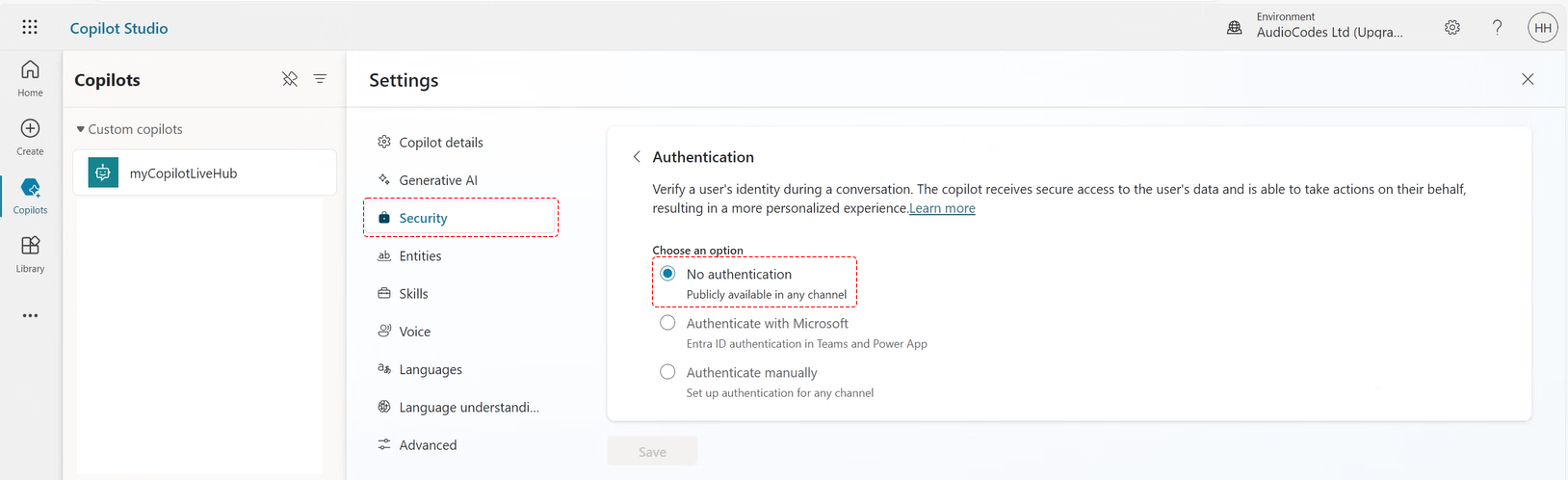
Click Security, then Authentication, and then select No authentication.
-
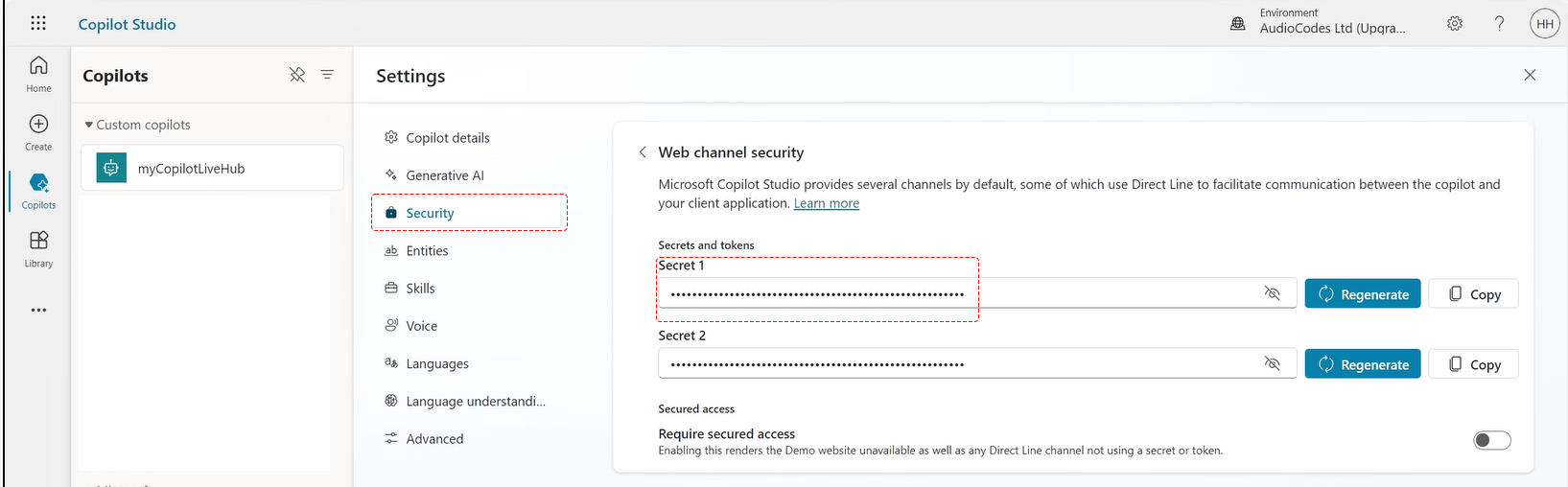
Click Security, then Web channel security, and then click Copy next to the secret you want.
-
Click Advanced, expand Metadata, and then copy 'Environment ID'. It also appears in your bot's URL in the browser address bar.
Create the bot connection
With the credentials for your chosen method ready, create the bot connection in Live Hub.
To create a bot connection:
-
In the Navigation pane, select Bot connections, and then click Add new voice bot connection or Add new assist bot connection.
-
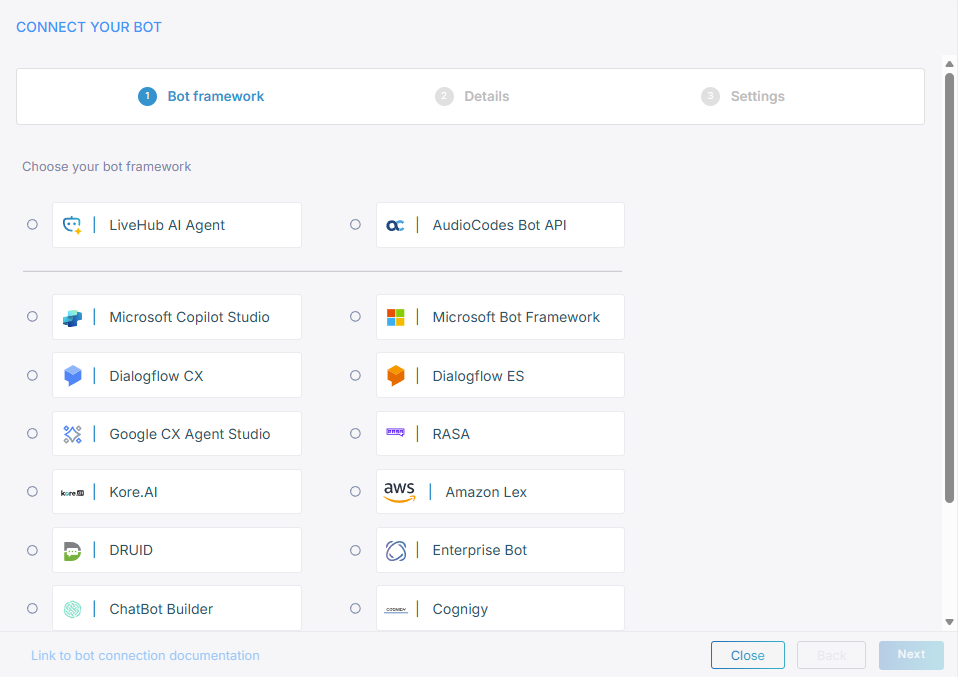
Select Microsoft Copilot Studio, and then click Next.
-
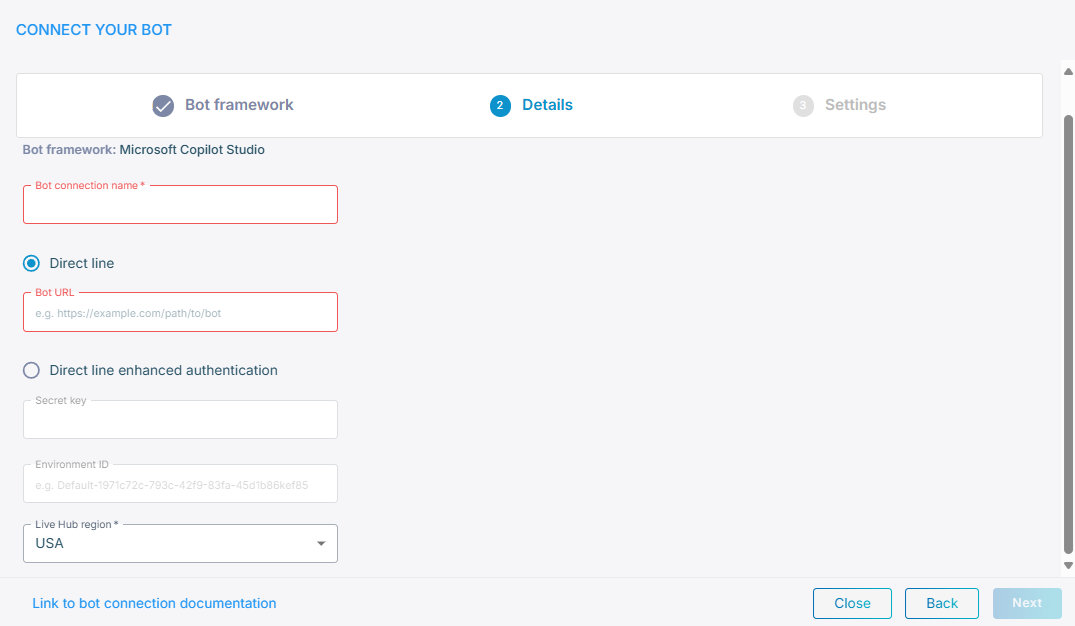
In the 'Bot connection name' field, enter a name for the bot connection.
-
Provide the credentials for the method you chose:
- Direct line: In the 'Bot URL' field, paste the token endpoint URL.
- Direct line enhanced authentication: In the 'Secret key' field, paste the
secret, and then in the 'Environment ID' field, enter the environment ID, for
example
Default-1971c72c-793c-42f9-83fa-45d1b86kef85.
-
From the 'Live Hub region' drop-down list, select the region your Live Hub voice infrastructure runs in. See Global region support.
-
Click Next.
-
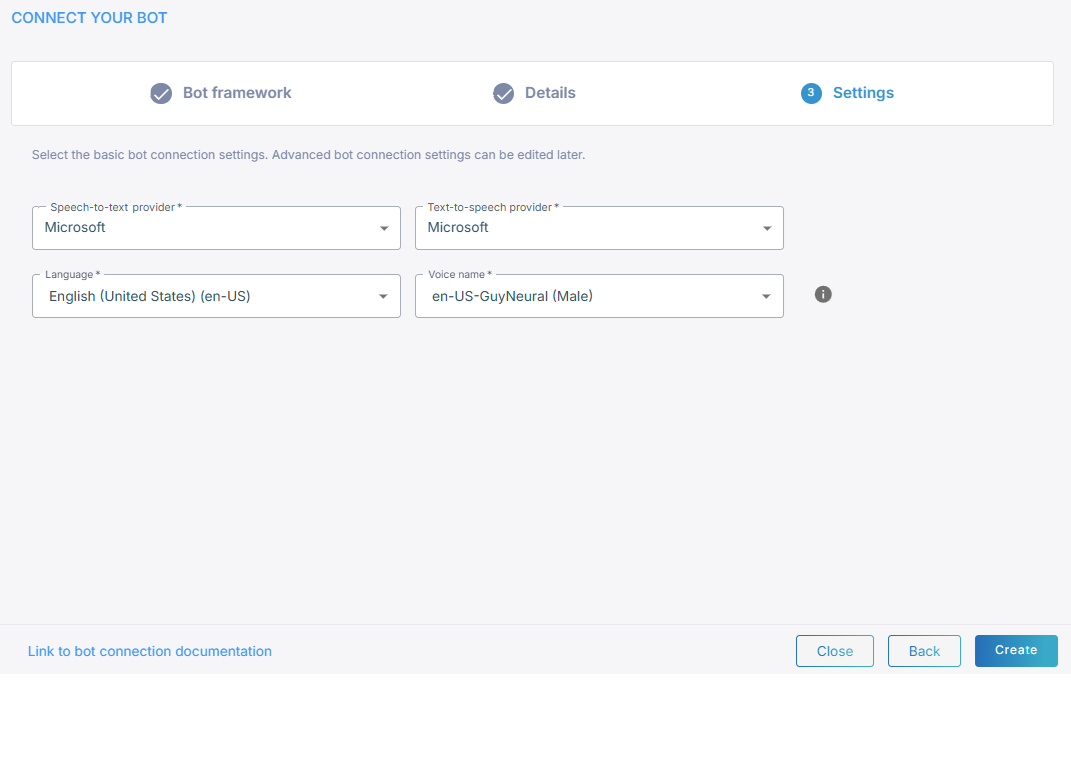
Select a speech-to-text service and a text-to-speech service.
-
Click Create.
Messages and events in Copilot Studio
Key concepts
Three terms recur in the Copilot Studio integration:
| Term | Meaning |
|---|---|
| Topic | A conversation flow in Copilot Studio. A topic is triggered by a set of phrases, or from another topic. |
| Activity | A control command sent to Live Hub rather than to the caller: start recording, switch language, and so on. |
| Notification | A message sent from the Session Manager to the bot, not necessarily tied to the current topic: the start-conversation event, for example. |
Copilot Studio currently supports the start-conversation event only.
Send a message
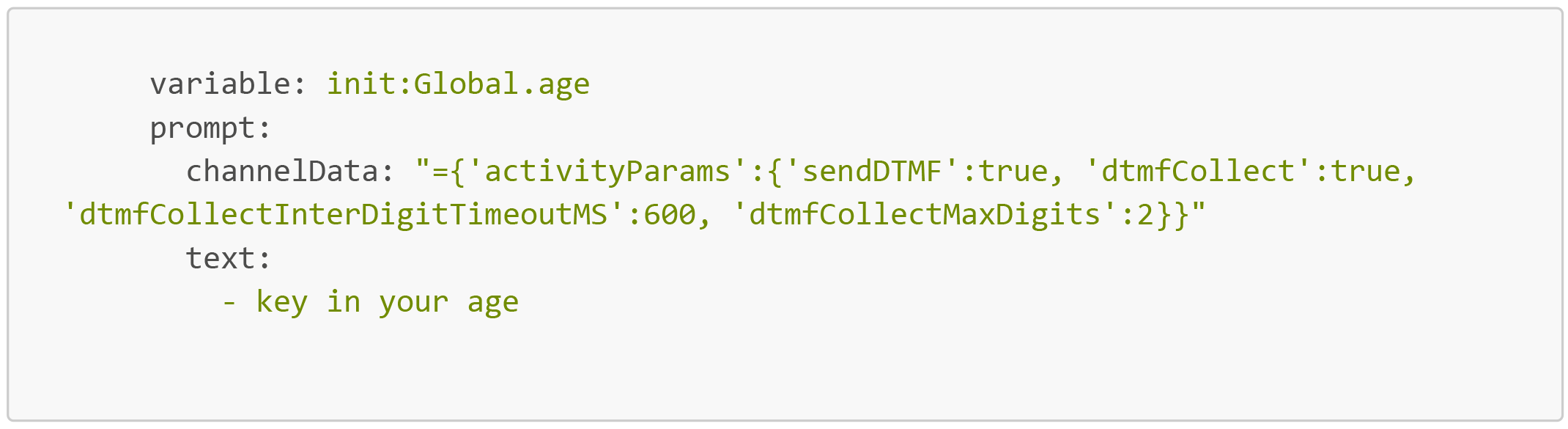
To add session or activity parameters to a message, paste the JSON into the
'Channel data' section of the message.
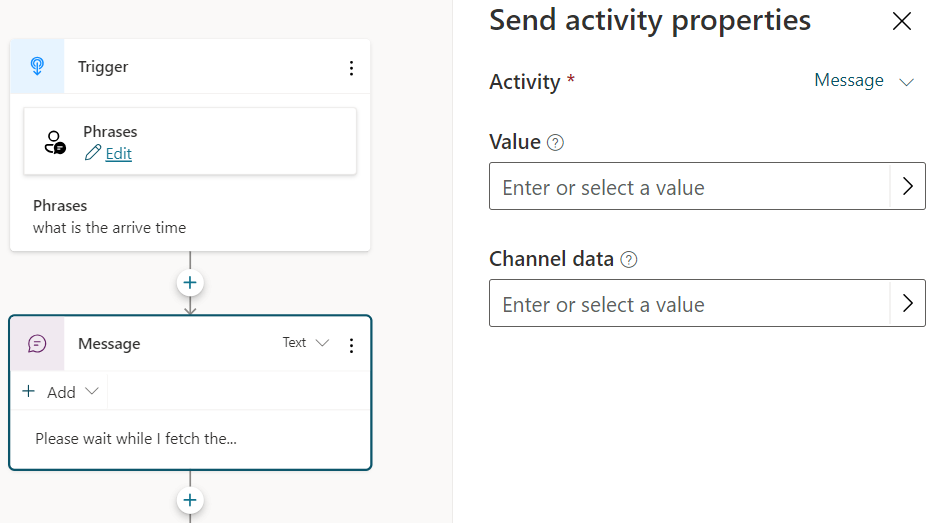
For a question, use the code editor:
-
Set the question text and parameters, click the ellipsis in the top-right corner, and then select Open code editor.
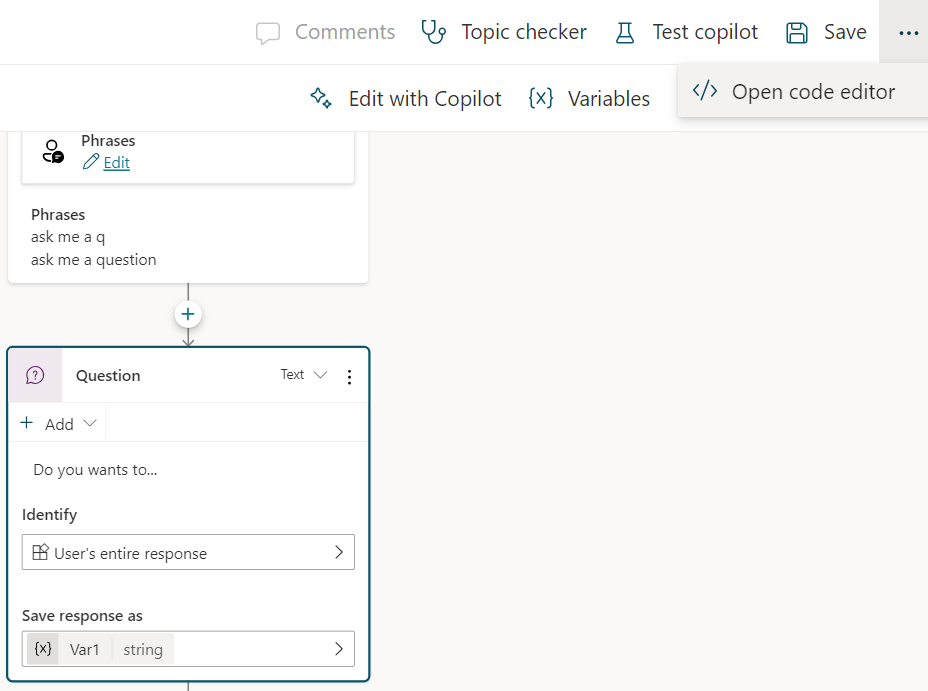
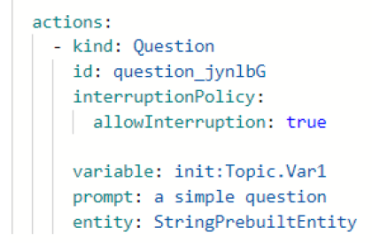
-
The editor shows the whole topic as YAML.
-
Change the prompt to carry both
textandchannelData.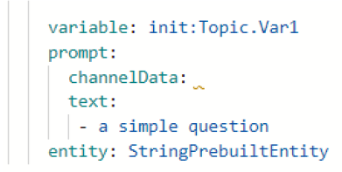
-
Add the activity parameters you want.

Send an event to Live Hub
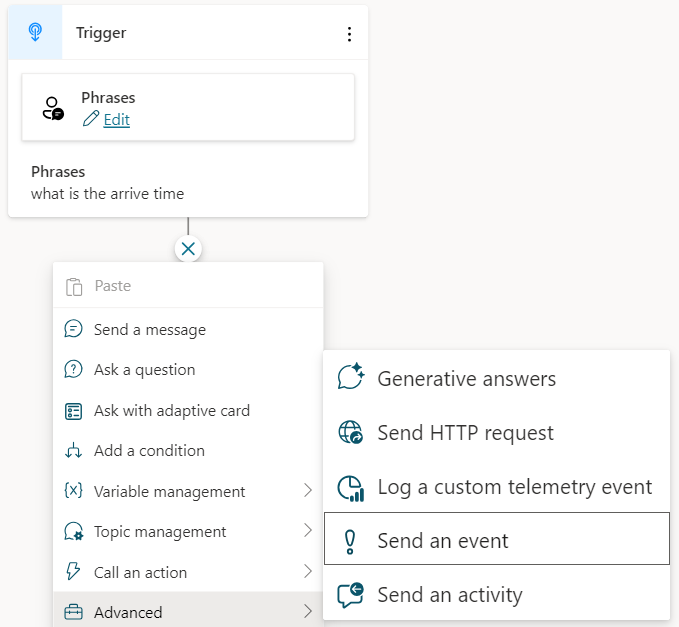
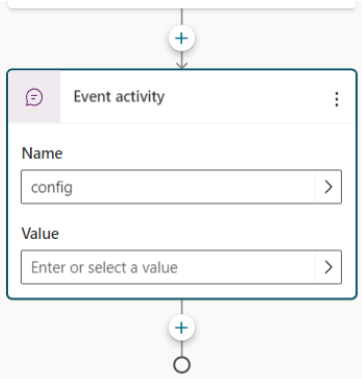
To send an event with no message to the caller, use Copilot Studio's Send an event option, then enter the event name in 'Name' and the JSON in 'Value'.
Receive events from Live Hub
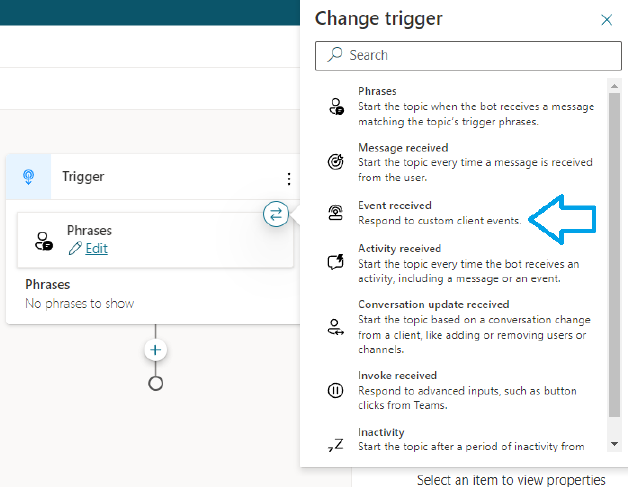
The bot catches events with an event-received trigger topic, in which the event name
property is the condition that checks Activity.name.
Call details arrive in the channel event at the start of the conversation.
-
Start a new topic and change the default trigger to Event received.
-
Set the condition to check that
Activity.nameequalschannel.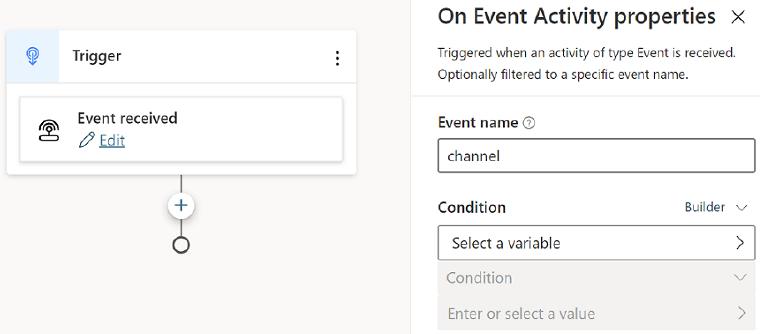
-
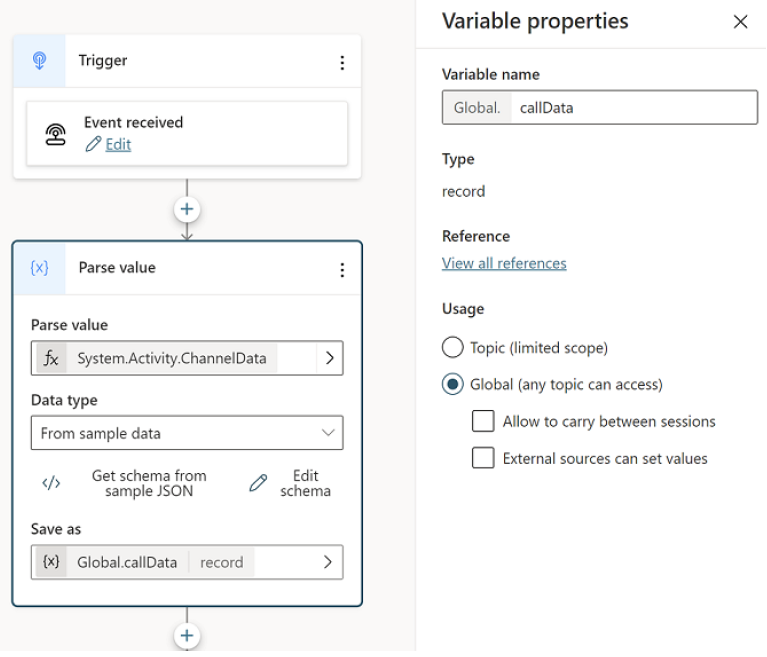
To keep a value, use Parse value.
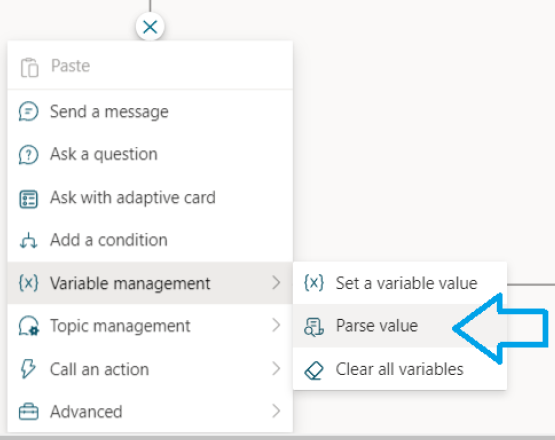
-
In 'Parse value', use the formula with
System.Activity.ChannelData.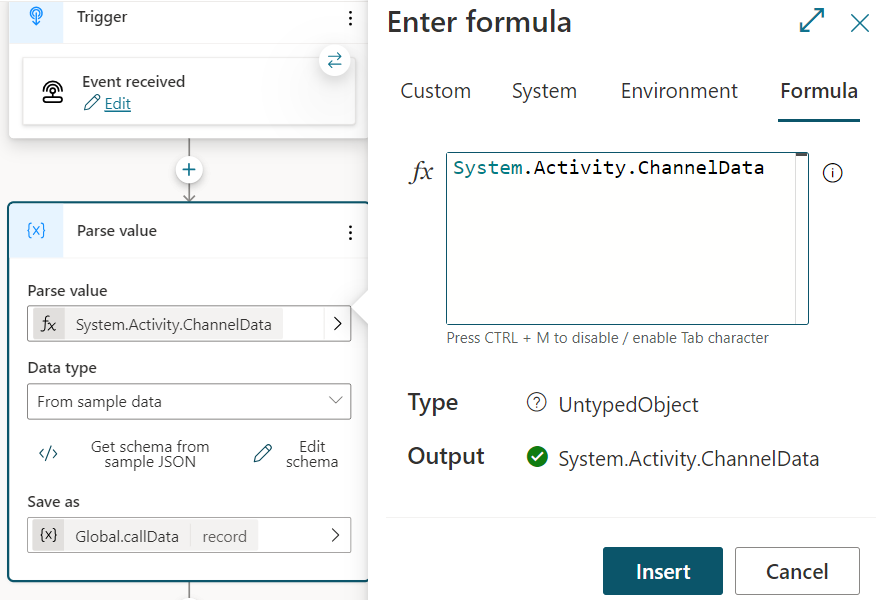
-
To keep the whole response, from the 'Data type' drop-down list, select From sample data, and then paste the
channelDataJSON from call initiation.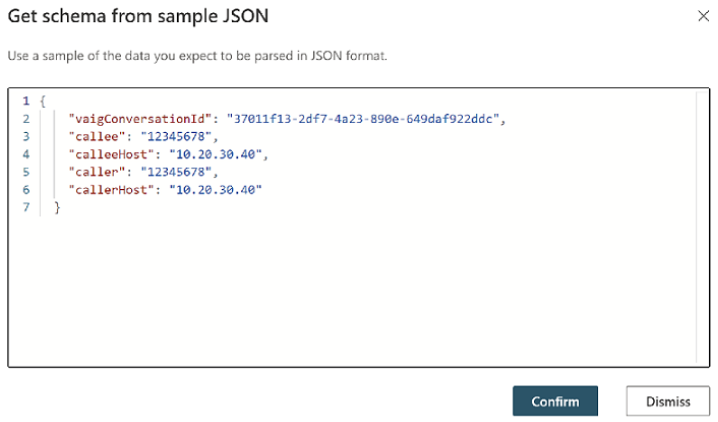
-
Save it as a new parameter. Select Global to use the variable across topics.